"White Magnolia" Vector Pattern


-.jpg?1&s=98c0eaf0008d22fc7a46250c3cdf1b88)


-.jpg?1&s=5ad6267a66740bf5252a741ef743fc39)


-.jpg?1&s=98c0eaf0008d22fc7a46250c3cdf1b88)


-.jpg?1&s=5ad6267a66740bf5252a741ef743fc39)

MarynaPetrovska
sku: 6336170
ACCORDING TO OUR RECORDS THIS PRODUCT IS NOT AVAILABLE NOW
$7.00
Shipping from: United States
Description
A realistic hand-drawn vector pattern with a hand-drawn Spring White Magnolia. Accentuated white flowers on a dark background form an intertwining of branches with flower buds and leaves. I painted these flowers by photographing the Magnolia at the local Botanical Garden. These photos served as my reference. Looking at them I drew the plants on my touchpad Tablet with screen . This device allows me to draw flowers as if I were drawing them on paper. With the only difference, I draw them directly in the program Adobe Illustrator In my technique I use the mode of superimposition of transparencies, one stroke on another, overlay of one color on another. So I achieve transitions in colors and light and shadow. It's a bit like a watercolor in technique. The main advantage of this pattern is that it is drawn in vector format. Highly detailed and hand-drawn without the use of gradients or gradient masses. Vector files have no scaling limitations, you can enlarge the illustration without loss of quality. The template was developed specifically for the design of clothing, prints for T-shirts, full-color prints for dresses, upholstery for furniture, wallpaper for walls in the interior. But, it can also be used for a post on social networks, a personal blog or website header, front page , design storiz in Instagram, profile cover in Facebook. The wallpaper on your computer desktop or phone lock screen, will look great. There are a lot of ways to use this pattern, but above all, it is designed for decorating any surface Therefore, vector files have no scaling limitations EPS, AI Raster copies in the file for the buyer are saved at a resolution of 300 DPI TIF, PSD, JPG, PNG A PNG file is saved with a transparent background. When you open any vector file, you can move the objects in the patch by unclipping the clipping mask Object - Clipping Mask - Release, and then ungroup the layer Object - Ungroup ALT Ctrl 7 Shift Ctrl G. If you have any difficulties or questions, feel free to contact me at [email protected] Or on any of the social media outlets listed on my profile. Thanks for the post about my store, have a nice shopping experience
Technical Details
| _GoogleCategoryID: | 5032 |
Price history chart & currency exchange rate
Customers also viewed


$55.97
54-дюймовая подставка, кованая железная Летающая птичья клетка с подставкой и выдвижным лотком, клетка для попугаев, птичья клетка
aliexpress.ru
$32.51
Детская китайская культура Hanfu 2023 для мужчин и женщин, новая производительность Hanfu, китайские бамбуковые четыре джентльмена, дети Hanfu
aliexpress.ru

$40.60
Экшн-фигурки из аниме «Death Note», игрушки, манга, Ягами, статуэтка риюку, 30 см, Подвижные модели из ПВХ, украшения, подарок для детей
aliexpress.ru

$5.39
Сумка для хранения спортивных мячей большого размера, баскетбольная сумка, сумка для хранения футбола
aliexpress.ru
$2.16
Классический Маскировочный реквизит пушистые очки для носа с бровью и усами инструмент для розыгрыша
aliexpress.ru
$9.59
RGB-подсветка Беспроводная с голосовой активацией, перезаряжаемое освещение с голосовой активацией, 17 цветов
aliexpress.ru
$6.99
Солнцезащитный козырек для ветрового стекла с забавными животными и узором пожарного автомобиля, аксессуары для автомобиля, солнцезащитный козырек для защиты автомобиля, украшение для мужчин
aliexpress.ru

$36.23
Женский трикотажный комплект из 2 предметов, однотонный укороченный топ с оборками и длинным рукавом, велосипедные шорты на пуговицах, подходящий комплект, осень 2023, новые спортивные костюмы
aliexpress.ru
$26.06
Аксессуары для шланга 2014-2016, черная модель, подходит для Ford Escape, прочная Высококачественная практичная замена
aliexpress.ru
$19.94
Новые черные мужские костюмные туфли, мужские классические туфли, итальянская кожаная обувь, мужские деловые туфли, мужские офисные туфли
aliexpress.ru

$125.38
evening bags designer burchs handbags torys tote bag tb luxuries designers women mini crossbody handbag shoulder totes purses wallet kira fl
dhgate.com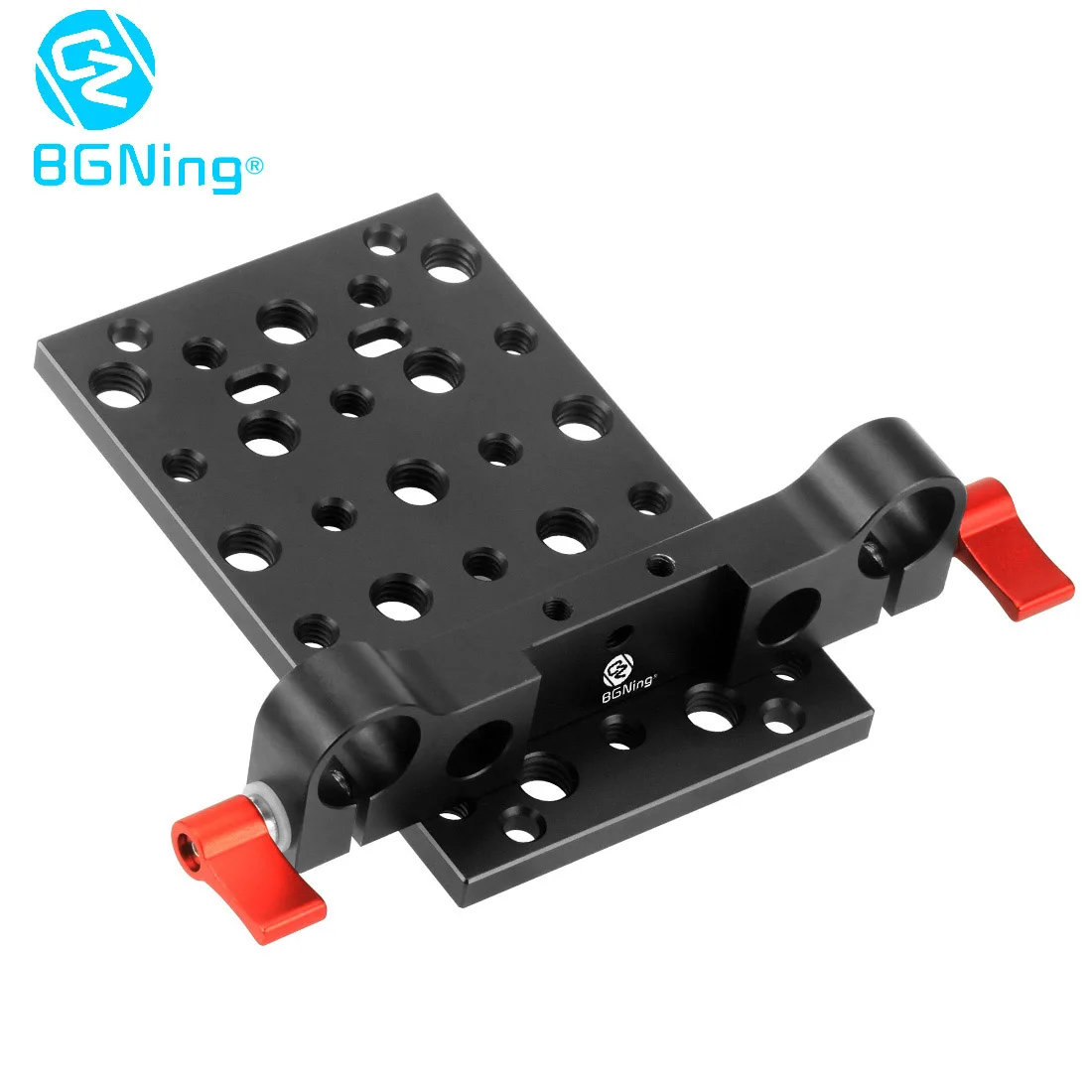
$11.29
BGNing Tripod Mounting Plate Rail for 19Mm Conduit Mounting Interface Board Holder With 1/4 Inch 3/8 Inch Hole for 5D2 DSLR Cam
aliexpress.com
$10.79
Little Unicorn Baby Backpack School Bags for Girls Boys Cartoon Animal Kindergarten Bag Kids Book Bag mochila infantil Schoolbag
aliexpress.com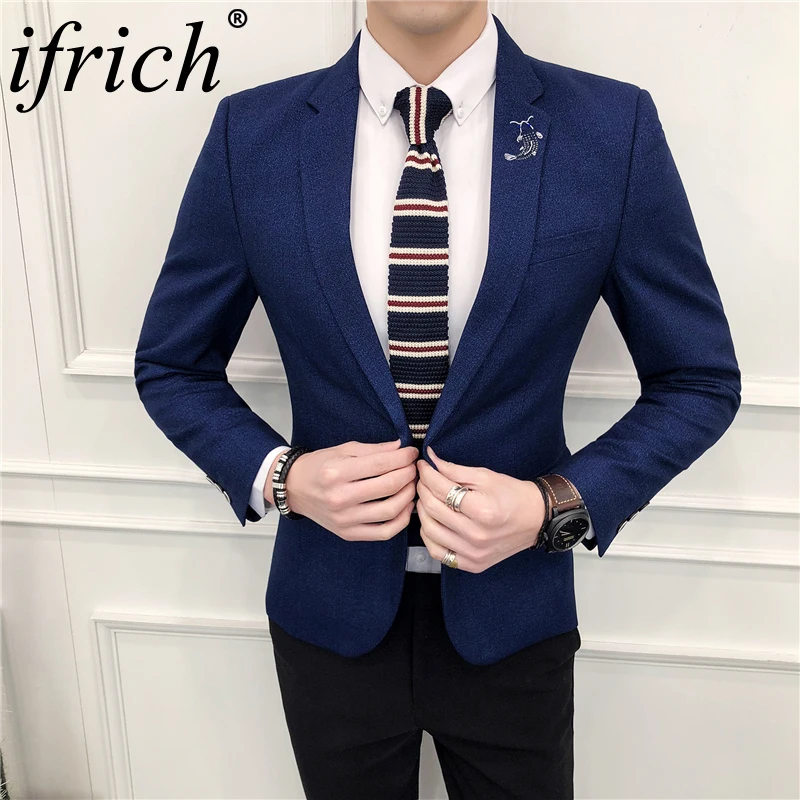
$80.58
Brand Blazer Men Casual Slim Blazers Male 2018 Spring New Arrival Fashion Party Single Breasted Mens Suit Jacket Plus Size M-3XL
aliexpress.com


$13.60
MoesHouse WF-SMS Smart WiFi PIR Motion Sensor Human Detector Smart Life App Control Alarm System Infrared Sensor USB Charging
aliexpress.com
$18.22
African Dashiki Print Short Sleeve Blue Long Dress African Dresses For Women Plus Size
aliexpress.com

$249.03
Brewista Smart temperature control coffee pot 0.6L slender mouth hand punch coffee pot 1000W 220Vtemperature fine mouth pot
aliexpress.com
$20.22
Car Rear View Reversing Camera For Mercedes-Benz Viano Sprinter Vito For Transporter Crafter Infrared Vehicle Backup Camera
aliexpress.com

$13.25
12Pcs/Set Jewelry Tools Jewelry Making Set Flat Nose Pliers Beading Needles Kit Fit Diy Jewelry Making Tools And Equipment
aliexpress.com
$14.75
DC Super Heroes Batman v Superman:Dawn of Justice Q Version #643 Superman PVC Action Figure Juguetes Model Doll Kids Toys
aliexpress.com
$8.76
Top Sale Aromatherapy Essential Oil Diffuser, 170Ml Portable Usb Ultrasonic Cool Mist Humidifier Auto Shut-Off And 7 Fascinati
aliexpress.com
$25.37
Unisex EMF Radiation Protection Baseball Cap Rfid Shielding Electromagnetic Hat AIA99
aliexpress.com
