Thermal Map Photoshop Action


Описание
Thermal Map Photoshop Action - Video Tutorial : IMPORTANT TO KNOW - Your photo is in RGB color mode - Your photo is in 8bit color mode - You are running the English version of Photoshop - If you are experiencing errors, try resetting your Photoshop preferences. To do this, hold down Alt, Ctrl, and Shift keys Mac: Command K while starting Photoshop. A dialog box will appear asking your permission to delete the preferences/settings file . - Avoid using small resolution images. For the best results, use photos between 2000px - 5000px min resolution: 72dpi high/wide. Chances of the action running into errors will increase for lower resolution under 1000px high/wide . Photos with good color variation and contrast will work best. - Video Tutorial : FEATURES - Easy to Use - Well organised layers - Fully editable layers - Easy to customise - Non-destructive action - Complete instructions - Compatible with Photoshop CS4 to CC2023 Tested in English version HOW TO LOAD THE PATTERN 1st option - Inside Photoshop, go to the Window' menu and select Patterns'. A window will - now appear to the right hand side. - Inside the Actions window, click on the top right hand corner icon to reveal the drop down menu. - - - From here select Import Patterns...'. Select the downloaded action. - The action will now appear in the actions panel for you to use. - Video Tutorial : 2nd option - Just drag and drop - Video Tutorial : HOW TO LOAD THE BRUSH 1st option - Inside Photoshop, go to the Window' menu and select Brushes'. A window will now appear to the right hand side. - Inside the Actions window, click on the top right hand corner icon to reveal the drop down menu. From here select Import Brushes...'. Select the downloaded action. - The action will now appear in the actions panel for you to use. - Video Tutorial : 2nd option - Just drag and drop - Video Tutorial : HOW TO INSTALL THE ACTION 1st option - Inside Photoshop, go to the Window' menu and select Actions'. A window will now appear to the right hand side. - Inside the Actions window, click on the top right hand corner icon to reveal the drop down menu. From here select Load Actions...'. Select the downloaded action. - The action will now appear in the actions panel for you to use. - Video Tutorial : 2nd option - Just drag and drop - Video Tutorial : HOW TO USE THE ACTION - Choose an image to work with. - When starting out make sure the image layer is selected. - Click the Play button at the bottom of the actions panel to initiate the steps and wait. - BOOM! Your the effect is now applied. If you want to try another simply delete the group/added layers and start over. Your original image is never harmed or altered. - Video Tutorial : CREATE CUSTOM EFFECTS To create new undiscovered effects combine different actions; - Run the first Action on the photo. - Save your file as a Jpeg image. - Close the Photoshop file and open the image you just saved. - Run another Action over it. This will apply the second Action effect on top of the first and you'll have a unique and customised look.
Характеристики
| _GoogleCategoryID: | 5032 |
График изменения цены & курс обмена валют
Пользователи также просматривали

$2.02
2Pcs 25cm 28cm Stainless Steel BBQ Grill Rack for Chicken Fish Pizza Kitchen Bar Tools Lightweight Outing
aliexpress.com
$0.52
Stainless Steel Wire Brush 6x16mm Long Tip for Pipe Cleaning Rust Removal Heavy Scrubbing Engine Maintenance Metal Surface
aliexpress.com

$42.92
Контроллер заряда солнечных батарей MPPT, 60 А, 80 А, 100 А, 12 В, 24 В, 36 В, 48 В, интеллектуальный регулятор для свинцово-кислотных/литиевых батарей
aliexpress.com
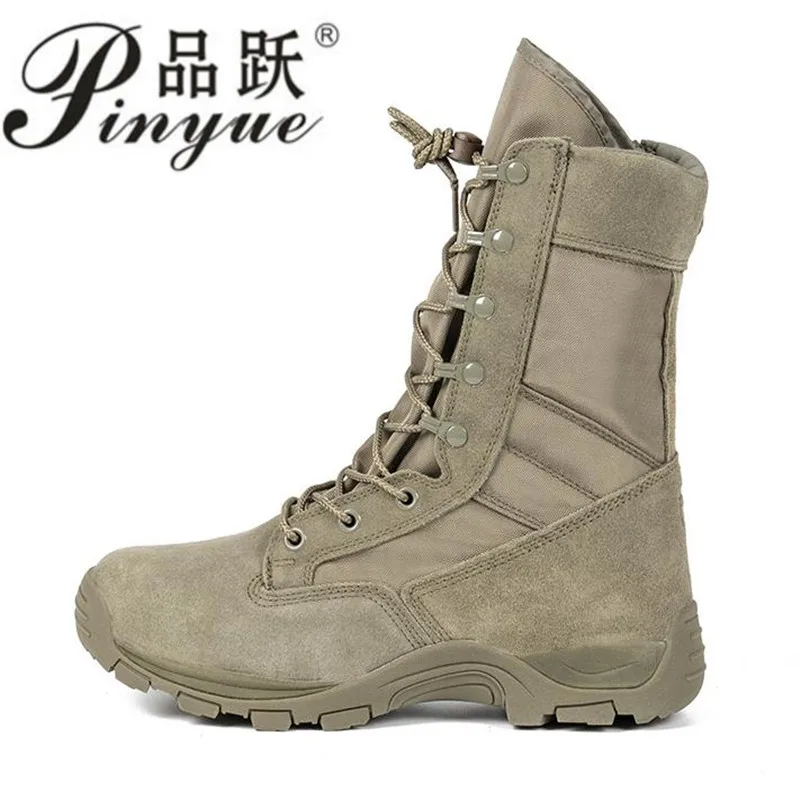
$19.99
Мужские армейские ботинки, высокие ботинки, спецназ, тактические, для пустыни, обувь для скалолазания
aliexpress.ru



$14.04
2021 Ladies spring and AutumnPrinted Two Piece Set Long Sleeved Lapel Cardigan Shirt top and Ruffle Bandage Shorts set
aliexpress.com


$11.14
Halloween Wizard String Lights Glowing Hanging Ornament Waterproof LED Lamp for Home Garden Courtyard Decoration ALS88
aliexpress.com
$134.10
Мужские Винтажные механические часы HEIMDALLR, водонепроницаемые механические часы NH35A с синим сапфировым керамическим покрытием, 200 м
aliexpress.com
$11.80
Creative Night Light LED Christmas Fireplace Lamp Simulation Flame Warm Light Household Decorative Lamp Holiday Party Props Gift
aliexpress.com
$1.08
Doll Stuffed Emotional New Flip Plush supplies Home Stuffed Flip supplies Double-sided Home Toy Kids pulpo Octopus Crossing
aliexpress.com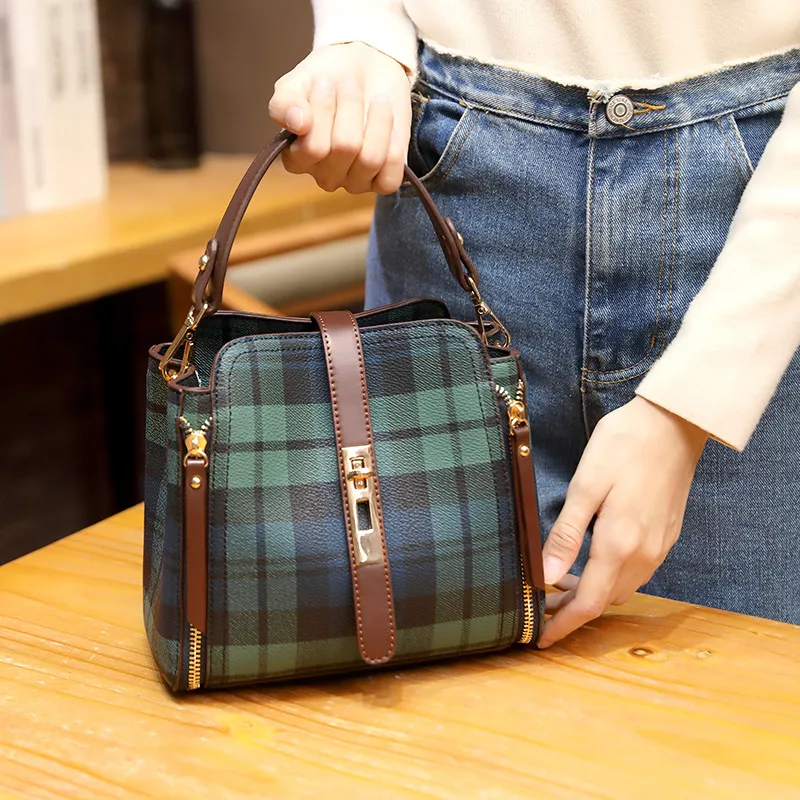
$49.70
Роскошные сумочки, женская сумка, кошелек из натуральной кожи, сумка De Luxe Femme, бренд Cc, модная сумка через плечо с принтом для женщин
aliexpress.com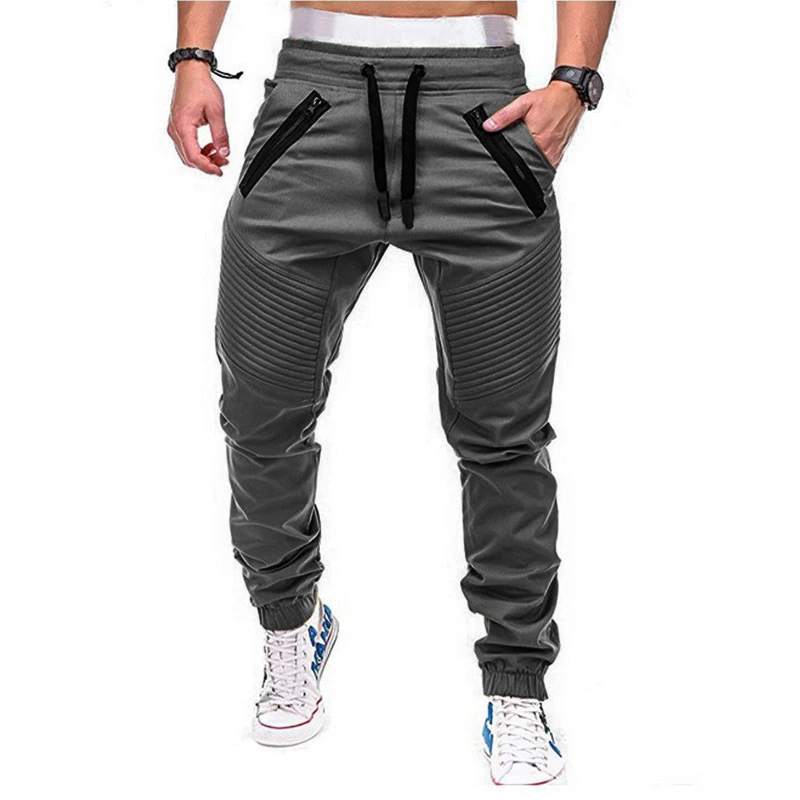
$11.98
Брюки-Карандаш мужские Плиссированные, модные повседневные эластичные спортивные штаны, улучшенные, однотонные, 2021
aliexpress.com
$14.78
Модная женская водонепроницаемая сумка на плечо, повседневный Повседневный чехол для фитнеса, портативный чехол на колесиках, чемодан
aliexpress.com
$0.63
Mesh Double Eyelid Sticker Invisible Natural Double Eyelid Sticker Lace Mesh Transparent Self-adhesive Eyelid Tape Sticker
aliexpress.com
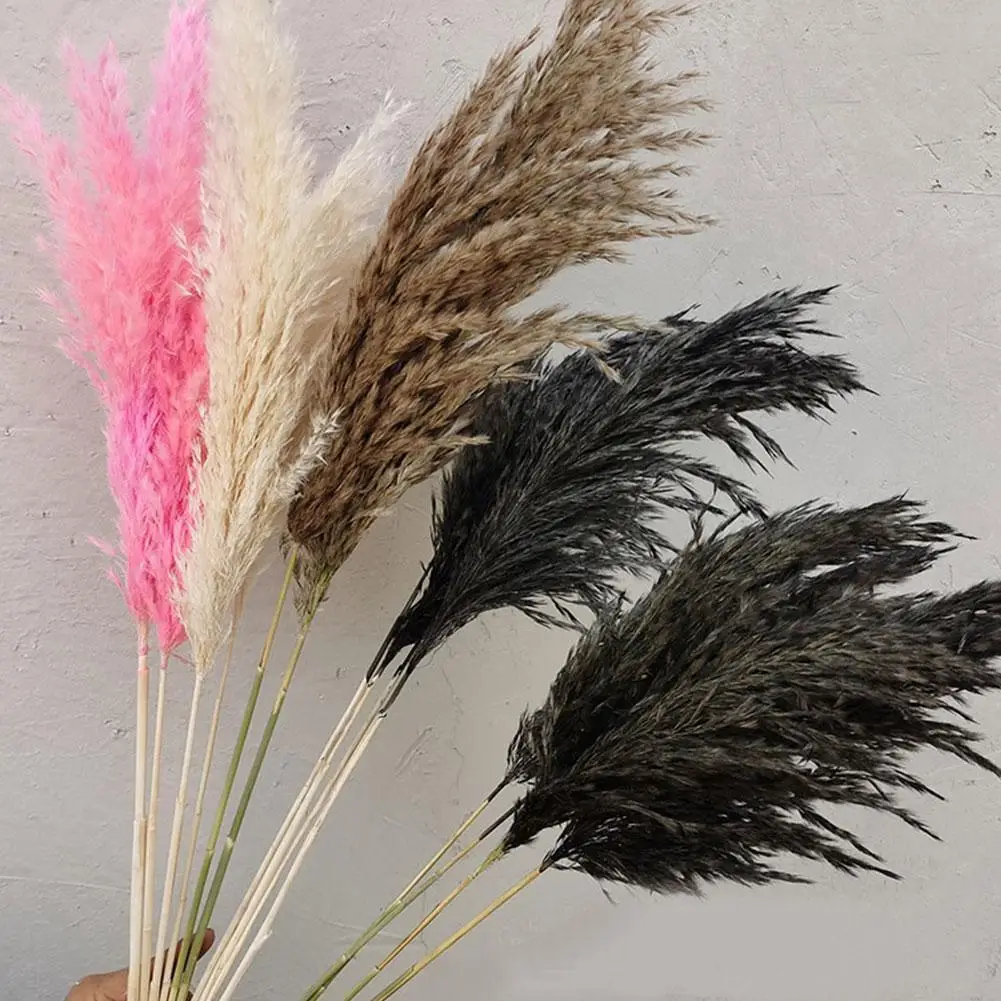
$1.24
5PCS Pampas Grass Dried Natural Phragmites Flowers Decor Dried Flower Big Pampas Grass Wedding Flower Decoration
aliexpress.com
$1.88
Electric Drill Dust Cover Rubber Impact Hammer Drill Dust Collector Dustproof Device Power Tool Accessories
aliexpress.com



$48.14
Трендовые мужские спортивные костюмы с 3D принтом Animal The Eagle, повседневные толстовки и брюки, комплект из 2 предметов, пуловер большого размера, модная мужская одежда 2XL
joom.com
$11.71
Зимняя вязаная шапка для девочек и мальчиков, теплая детская шапка-ушанка, шарф, цельная детская шапочка, детская шапочка для детей 1-5 лет светло-серый
joom.com

