Selective Area Coloured 21 Actions


Description
21 Selective Area Coloured Actions THINGS TO CHECK AND REMEMBER 1. Your photo is in RGB color mode 2. Your photo is in 8bit color mode 3. You are running the English version of Photoshop. 4. If you are experiencing errors, try resetting your Photoshop preferences. To do this, hold down Alt, Ctrl, and Shift keys Mac: Command, Option, Shift while starting up Photoshop. A dialog box will appear asking if you wish to delete the preferences/settings file. 5. Avoid using small resolution images. For the best results, use Photos between 1500px - 3000px high/wide. Chances of the action running into errors will increase the lower you go under 1000px high/wide. Photos with good color variation and contrast wil work best. 6. Avoid brushing onto mainly black areas on a photo. The effect is not very prominant when applied to mostly dark areas of a photo. 7. Remember that adjusting your photo resolution will determine how wide the parts spread out. If you run the action at 72DPI, then the parts will be quite close - if you run it at 300DPI, the parts will be spread much wider. Please refer to the video tutorial for a demonstration of this. 8. If you experience an 'Out of Memory' error during the action, go to the menu 'Edit -- Purge -- All' then press play again on the action to continue it. This can happen if you have insufficient memory installed on your computer. Photoshop can chew up lots of memory! HOW TO INSTALL THE ACTION 1. Inside Photoshop, go to the 'Window' menu and select 'Actions'. A window will now appear to the right hand side. 2. Inside the Actions window, click on the top right hand corner icon to reveal the drop down menu. From here select 'Load Actions...'. Select the action which came with the download. 3. The action will now appear in the actions panel. HOW TO USE THE ACTION 1. Open a photo to work with 2. Leave the photo layer locked and set as the 'Background'. To set your photo as the Background, select your photo layer and go to the menu 'Layer' -- 'New' -- 'Layer from Background..'. 3. Create a new layer above the background layer called 'brush'. MUST be all lowercase. 4. With the 'brush' layer selected, brush onto the areas of your photo that you want to apply the effect to. 5. play button found at the bottom of the action panel or play : .
Technical Details
| _GoogleCategoryID: | 5032 |
Price history chart & currency exchange rate
Customers also viewed


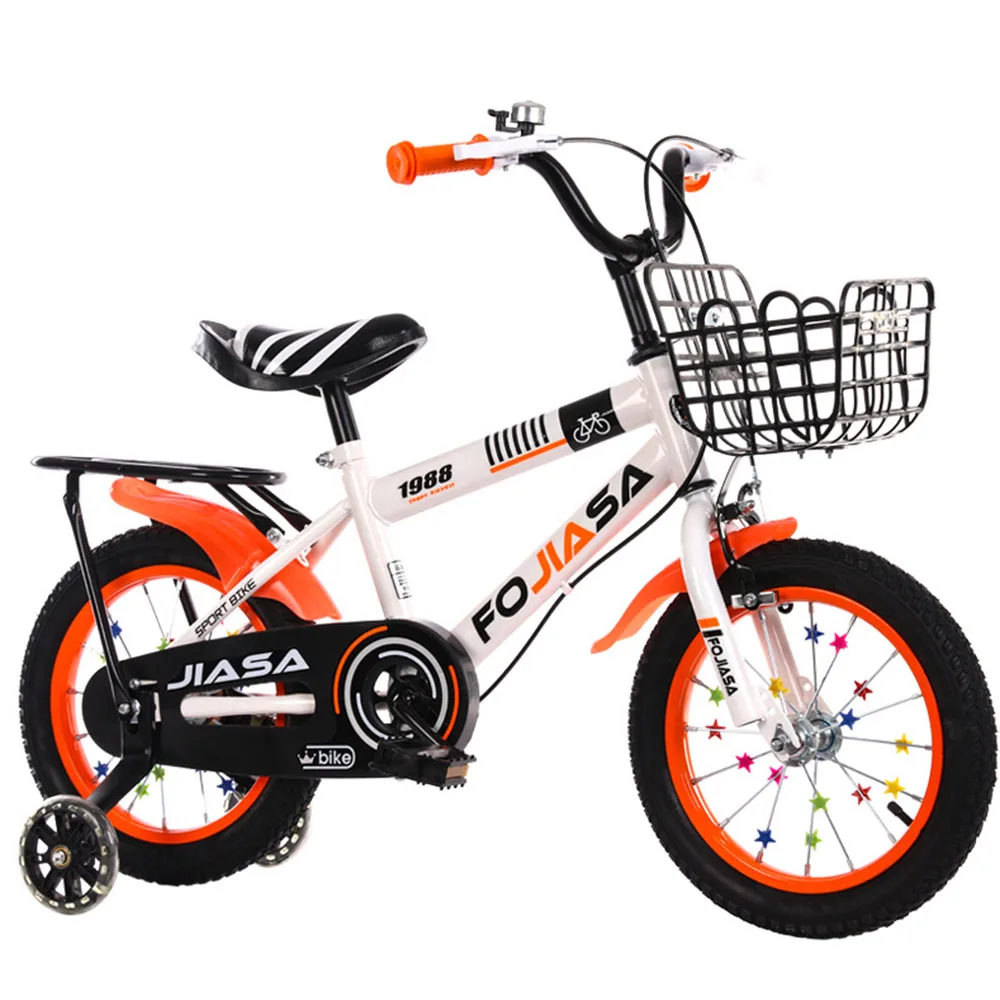
$208.56
Children Bicycle 12 Inch Children Bicycle High Carbon Steel Frame Stable Sturdy Hold Brake Thick Tire Safety With Bag Barrier
aliexpress.com
$39.50
Женский трикотажный кардиган с воротником-стойкой, приталенный Универсальный кардиган синего и темно-синего цвета, в винтажном стиле, для ранней весны, 2023
aliexpress.com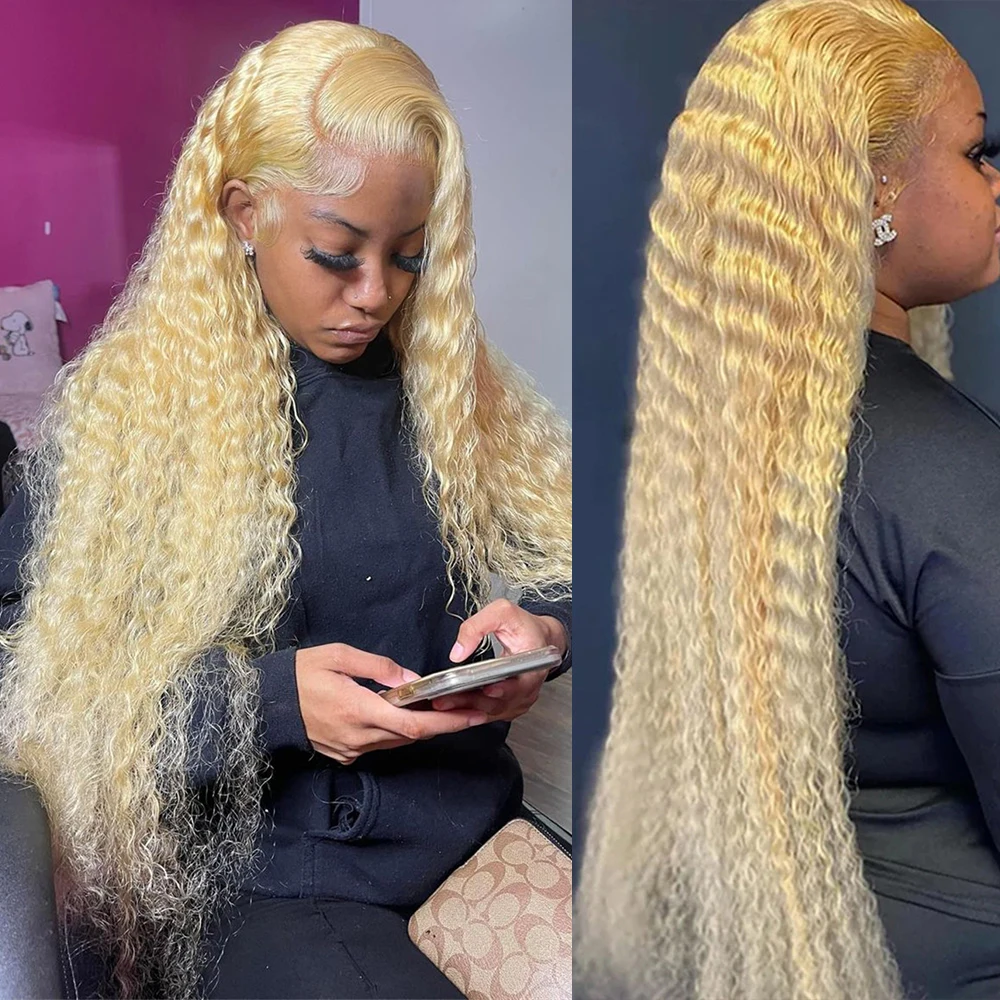
$175.90
Deep Wave 613 Hd Lace Frontal Wig 13x6 Glueless Brazilian 13x4 Wet And Wavy Water Wave Curly Blonde Lace Front Wigs Human Hair
aliexpress.com
$34.71
Одеяло с животными, удобное легкое мягкое постельное белье для дивана, офиса, путешествий, пушистое плюшевое домашнее одеяло, цветные воздушные шары
aliexpress.com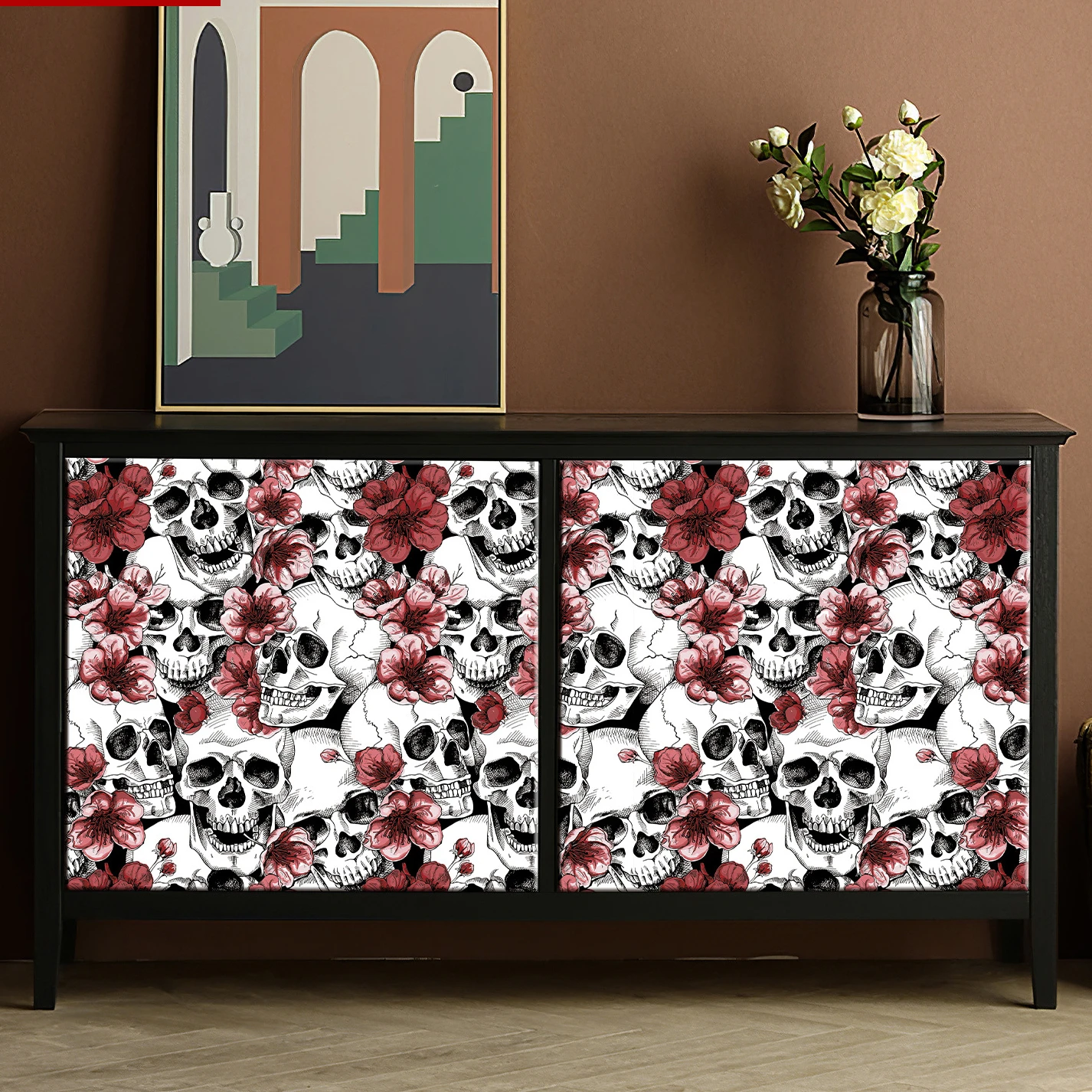
$18.55
Skull Head Wallpaper Living Room Window Display Terrifying Atmosphere Halloween Stickers Wallpaper Self-adhesive Crossbones
aliexpress.com


$44.79
LINDA DELLA Summer Fashion Designer Vintage Pleated Pants Sets Women's V-Neck Button Print Long Top+Pencil Trousers 2 Pieces Set
aliexpress.com
$281.40
Бальное платье с длинным шлейфом, свадебное платье, Кружевная аппликация с открытыми плечами, свадебное платье с открытой спиной для женщин и невест, изготовление на заказ, новинка
aliexpress.com
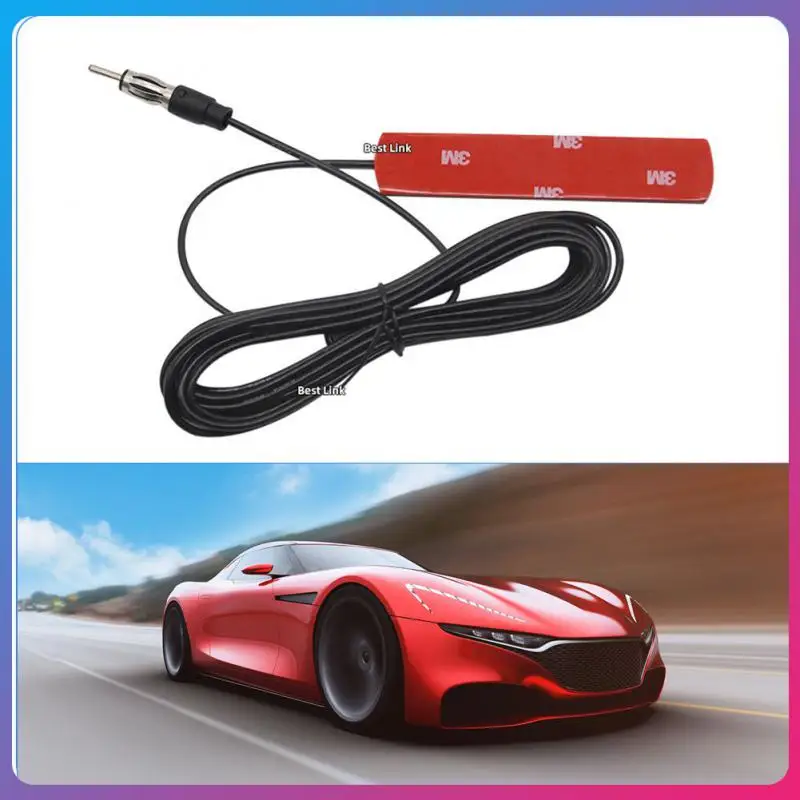
$3.59
Practical Signal Amp Amplifier Portable Antenna Stealth Fm Am Stable Signal Durable Fm Antenna Signal Amp Amplifier Car Supplies
aliexpress.com
$46.31
Creative Resin Cat Figurines Miniatures Decorative Animals Desktop Gifts Cat Statue Ornaments Home Decor Living Room Accessories
aliexpress.com![Смартфон Realme GT Master Edition 6/128GB (Cosmos Black) [76208]](http://touch.com.ua/upload/iblock/03a/qhxkuvhpaj7ejntkcl9jpmie1qf083bt.jpg "Смартфон Realme GT Master Edition 6/128GB (Cosmos Black) [76208]")

$18.90
Кроссовки Мужские Кроссовки Кросовки Мужские Мужские Кроссовки Красовки Мужские Обувь Мужская Кроссовки мужские теннисные, люксовые кеды,...
aliexpress.ru
$1.91
Универсальные модифицированные детали, 1 шт., топливный бак, бензиновый клапан, переключатель для внедорожника, вездехода, турбокомпрессора...
aliexpress.ru
$21.92
Детский спальный мешок, хлопок, теплый, кавайная Морская звезда, Пеленальное Одеяло на молнии для детской коляски
aliexpress.ru
