Banzai Vector Brush For Affinity


Описание
Banzai Vector Brush is vector brush pack for Affintiy Designer in iPad and Desktop Mac and Windows . This brushes was adapted from Pentel real brush pen. This is great since the texture brush is already in vector. The identical real brushpen of Pentel is the thickness of black ink in early and end strokes. And the texture will appear in between of early and end strokes. This brushpack has 9 unique texture brush and can be mixed in one project. All of them has been created to fit in with calligraphy work. The important things that i want to tell you is that you need to get used first about how to use vector brush with pencil. It's quite different with raster brush. I give you some tips about it, sliding over until the last images. I have some youtube videos about Affinity Designer vector texture brush that you can watch and i believe that it's gonna useful for you Pros and Cons using Texture Vector Brush in Affinity Designer: Result after i Import Texture Brush work from Affinity Designer to Adobe Illustrator I often to share more tips about how to use Banzai Brush on my Instagram page. Feel free to visit my youtube and instagam page on the link below How To Download: Save the .afbrushes file to your desktop, add it to your cloud drive to be able to access on your iPad. Read instruction below to open the file and import the Banzai_Vector_Brush.afbrushes file from your Affinity Brushes Studio. How to import the file Save the file to your desktop, then add the items to your cloud drive to be able to access on your iPad. Import the file in Affinity Designer on iPad: 1. Open Affinty Designer apps 2. Open new canvas 3. Tap Brushes Studio 4. Tap options icon stripes on the corner of the panel 5. Tap import Brushes 6. Select the Banzai_Vector_Brush.afbrushes from cloud drive. 7. Then Banzai Vector Brush will appear in your Brushes Studio Panel/Category. 8. Enjoy. Import the file in Affinity Designer on Desktop: 1. Open Affinty Designer apps. 2. Create new canvas. 3. Go to View panel - Studio - Brushes . 4. Click options icon with three stripes on the right corner . 5. Click import brushes. 6. Select the Banzai_Vector_Brush.afbrushes from cloud drive. 7. Then Banzai Vector Brush will appear on the Brushes Studio Panel/Category. 8. Enjoy. Requirements, Hardware and OS Please check this link to see the details: - Apple iPad Pro with iOS 11 - Apple Pencil - Mac or Windows Desktop - Affinity Designer for iPad Affinity Designer Version 1.7.3 - Affinity Designer for Desktop Affinity Designer Version 1.7.3 Terms You may not distribute or resell these files, or modify for resale or distribution. But you can do anything with the work you create using these brushes. i'd love to see what you create with these brushes. Share your work using banzaitexturebrush, i will be happy to see them. Or you can tag and mention me @_rdwnsyh on Instagram. More BRUSHES For PROCREATE that I recommend and made by me: - Zebrush Texture Brush For Procreate: - NEW Red Ribbon Brush For Procreate: Contact - Instagram: - Email: [email protected] Thank you, Irvan
Характеристики
| _GoogleCategoryID: | 5032 |
График изменения цены & курс обмена валют
Пользователи также просматривали
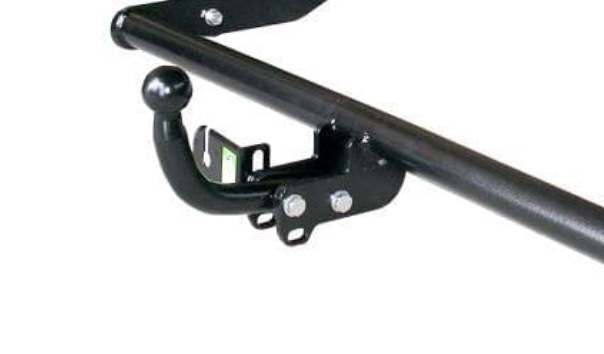
$139.49
Фаркоп(прицепное) Лидер-Плюс для SSANG YONG MUSSO 1993-2005 /ТАГАЗ ROAD PARTNER 2008-2011(
goods.ru


$5.23
Поясная сумка для мужчин и женщин, спортивная сумка для бега, велоспорта, забавная поясная сумочка, уличный кошелек для путешествий, гонок, п...
aliexpress.ru
$94.50
Автомобильный бампер, светильник для Mercedes-Benz GLA200 GLA180, дневсветильник 2015 ~ 2018y DRL, автомобильные аксессуары, светодиодный ные фары GLA200, противотуманные фары
aliexpress.ru
$63.58
Подставка для рук для ноутбука, верхний корпус/нижний корпус для Lenovo Ideapad S510P 6M.4L2CS.002 90203887 604L201.002 90203855
aliexpress.ru
$800.00
Боди из полипропилена для S Class W223 2021-2022y, детали корпуса с передней крышкой для губ, задний диффузор, выхлопные наконечники, заднее крыло
aliexpress.ru
$1.32
Cute food french fries burger sweets Phone Case Silicone Soft for iphone 14 13 12 11 Pro Mini XS MAX 8 7 6 Plus X XS XR Cover
aliexpress.ru
$3.69
Креативный держатель для демонстрации ювелирных изделий, подставка-манекен из смолы в форме буквы Ok для витрины, столешницы, магазина, шкафа, ожерелья, кольца
aliexpress.ru

$18.26
Русский алфавит, книги с аудио, детские книги, русские книги в русском и английском алфавитах, Электронная техника
aliexpress.ru
$22.75
Искусственные цветы, струны, искусственные розы, букет, украшение на стену, свадебное украшение
aliexpress.ru
$14.36
2022 женские ботильоны Новинка Осень-зима кожаные коричневые женские ботинки с круглым носком на массивном каблуке Модные Дизайнерские ботильоны на платформе
aliexpress.ru
$15.74
1 компл. Электрический мультиметр, автоматическое измерение, умный мультиметр, цифровой мультиметр с ЖК-экраном, тестовый набор ручек
aliexpress.ru
$10.50
Модное детское платье с рукавами-фонариками и оборками по бокам, высококачественное платье для маленьких девочек с цветочным принтом, кружевное платье для Хэллоуина
aliexpress.ru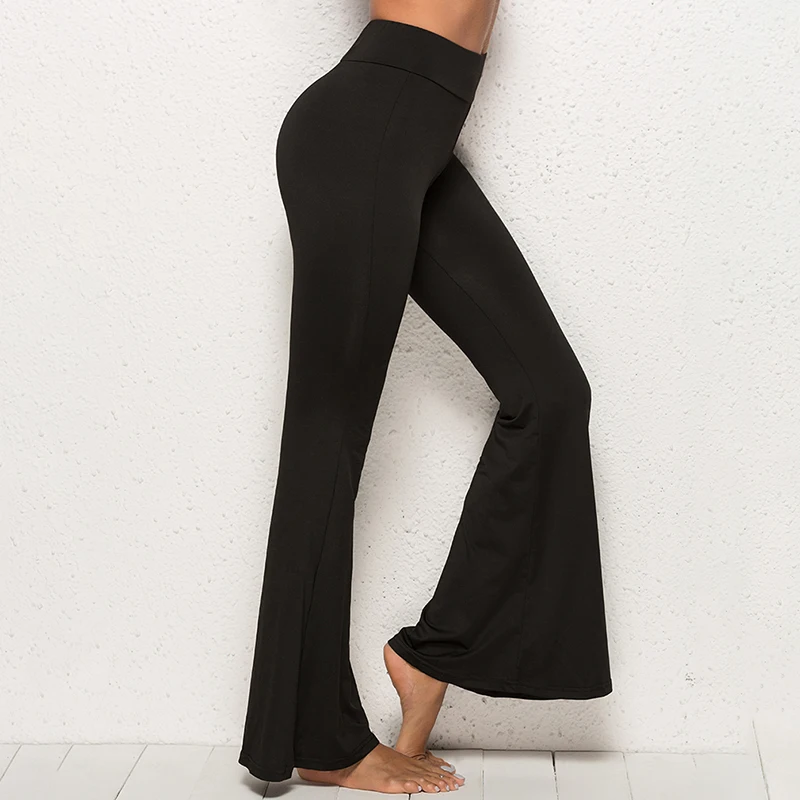
$12.30
Брюки женские модные однотонные эластичные леггинсы брюки с высокой талией брюки-карго женские брюки женские
aliexpress.ru

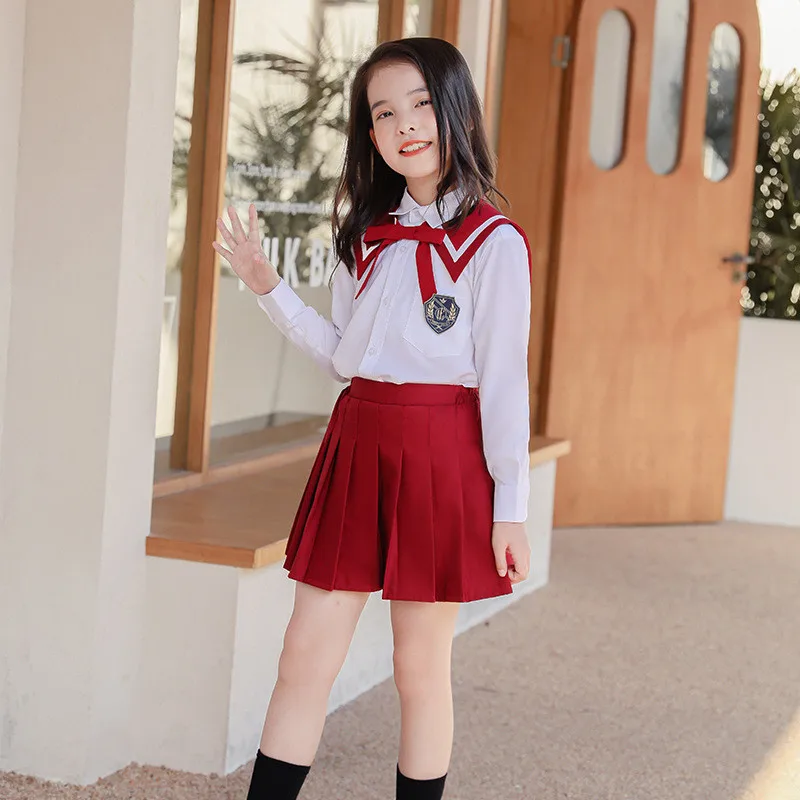
$27.17
Детский темно-синий костюм, Антибликовая плиссированная юбка, костюм в стиле преппи для мальчиков с длинными рукавами, темно-синий костюм
aliexpress.ru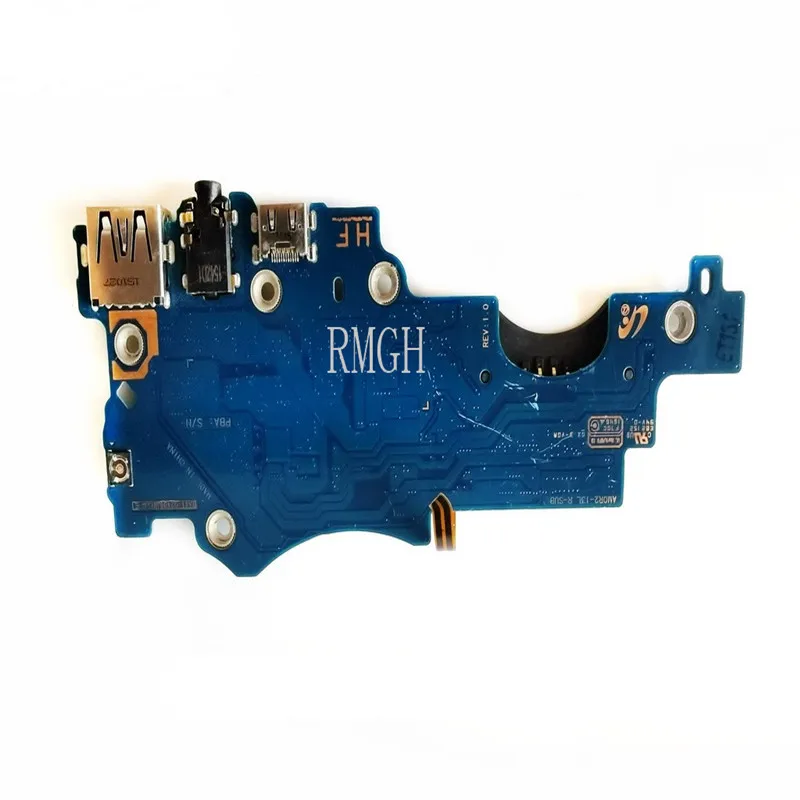
$28.99
Оригинал для Samsung серии 9 Np900x3l, USB-порт, кнопка питания, звуковая плата, Протестировано, хорошо, бесплатная доставка
aliexpress.ru
$35.62
Женское пальто ягненка YASUGUOJI в черно-белую клетку, зима 2022, Толстая теплая куртка из искусственного меха, Женское пальто на молнии в клетку
aliexpress.ru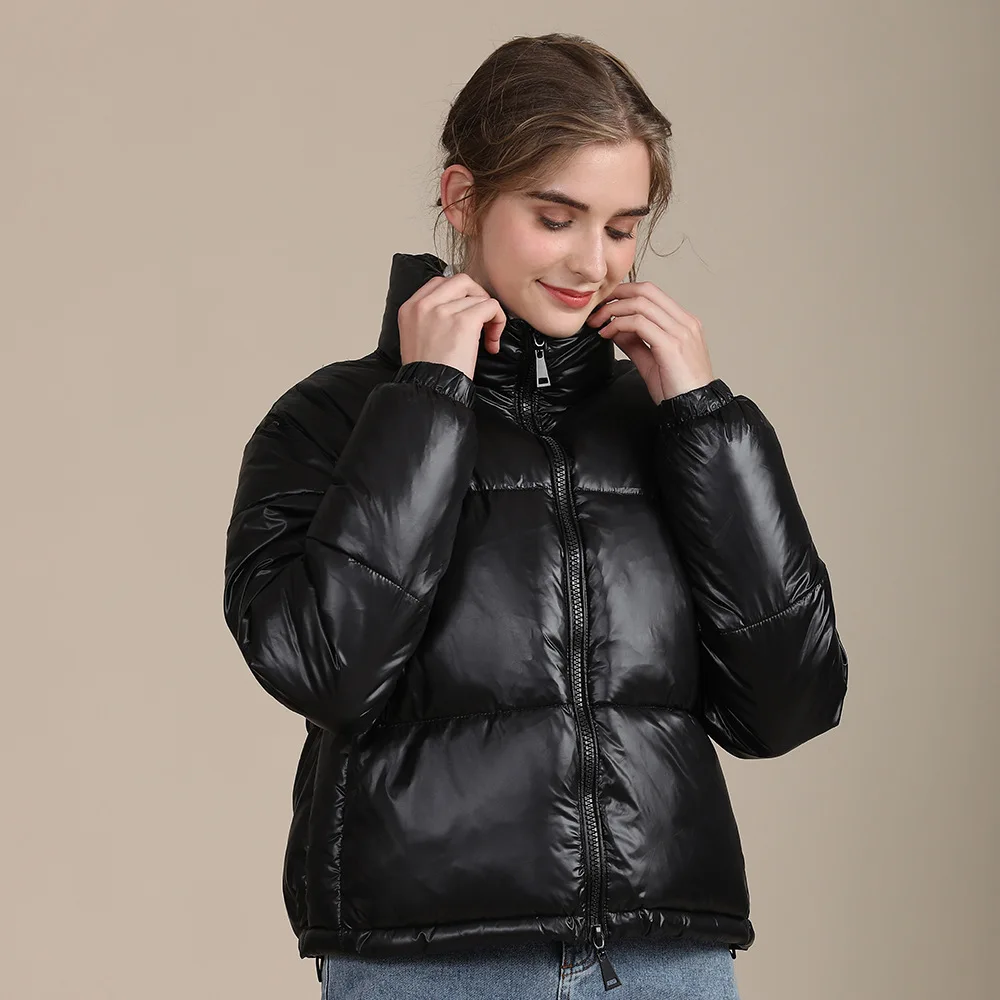


$1.10
Миниатюрный набор инструментов для кукольного домика, 3 шт., 1/12, мини Скалка + банки для приправ, декор для кухни, детские игрушки для ролевых ...
aliexpress.ru
$3.71
Lantern Light Garden Vintage Lamp Camping Landscape Flame Flickering Antiquemetal Hanging Night
aliexpress.ru
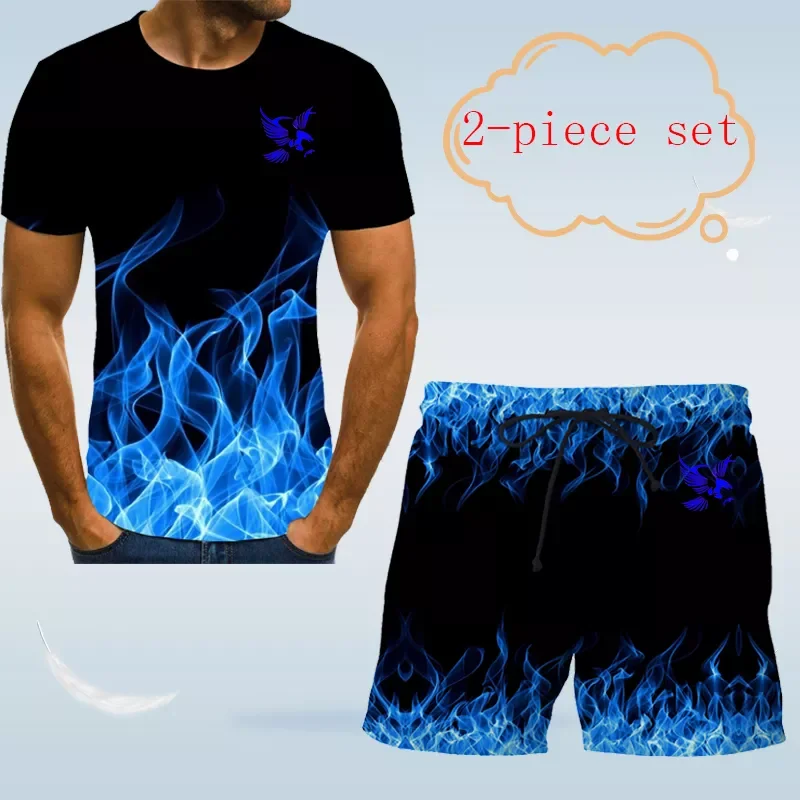
$41.25
Летняя Классическая футболка с принтом орла + шорты, Спортивная модная футболка с коротким рукавом и круглым вырезом в европейском стиле + ш...
aliexpress.ru


![Ноутбук ASUS X509JA-EJ022T (15.60 TN (LED)/ Core i3 1005G1 1200MHz/ 8192Mb/ SSD / Intel UHD Graphics 64Mb) MS Windows 10 Home (64-bit) [90NB0QE2-M00220]](http://www.notik.ru/img/catalog_img/74809/big/1_asusx509x509jaej022t.jpg "Ноутбук ASUS X509JA-EJ022T (15.60 TN (LED)/ Core i3 1005G1 1200MHz/ 8192Mb/ SSD / Intel UHD Graphics 64Mb) MS Windows 10 Home (64-bit) [90NB0QE2-M00220]")
$606.75
Ноутбук ASUS X509JA-EJ022T (15.60 TN (LED)/ Core i3 1005G1 1200MHz/ 8192Mb/ SSD / Intel UHD Graphics 64Mb) MS Windows 10 Home (64-bit) [90NB0QE2-M00220]
notik.ru
$0.89
70% Hot Sale Love Heart Shaped Earrings Necklace Ring Wooden Storage Box Retro Jewelry Box
aliexpress.com
$24.96
2021 Fall Winter Vest Coat New Style Cotton Clothing Women's Long Slim-Fitting Thickened Knee-Length Jacket
aliexpress.com
$55.83
dress shoes women bling sandals design women's cross strap bandage summer female ankle snake print lady high heels, Black
dhgate.com

$2.01
Infrared body Non-contact Temperature ABS for Adults and Children with Lcd Display Digital Laser Temperature Forehead too
aliexpress.com


